
Find the files the agent makes
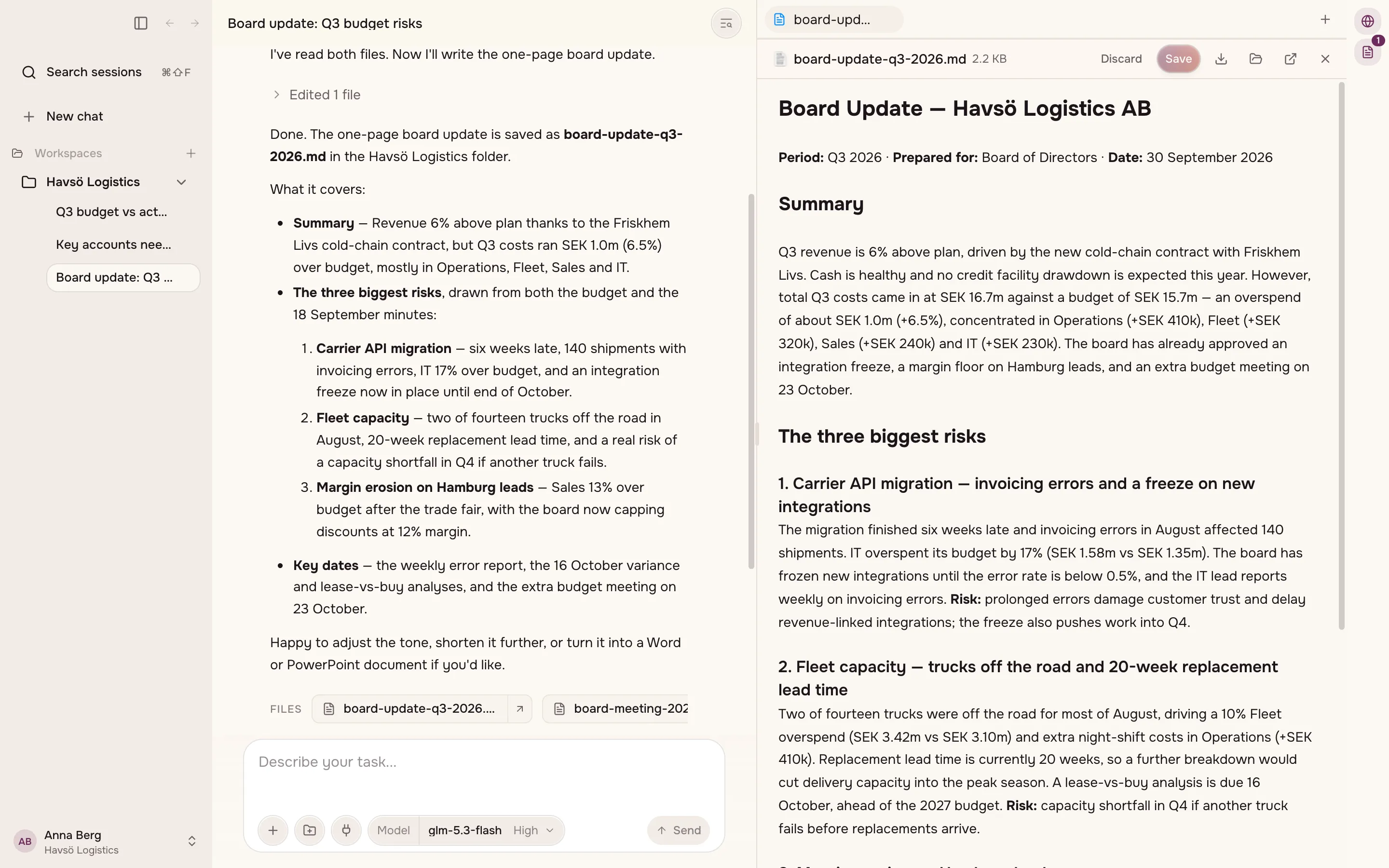
An artifact is a file the agent makes for you: a document, a presentation, a spreadsheet, a web page or something else.
Find your artifacts
Section titled “Find your artifacts”There are three places to look:
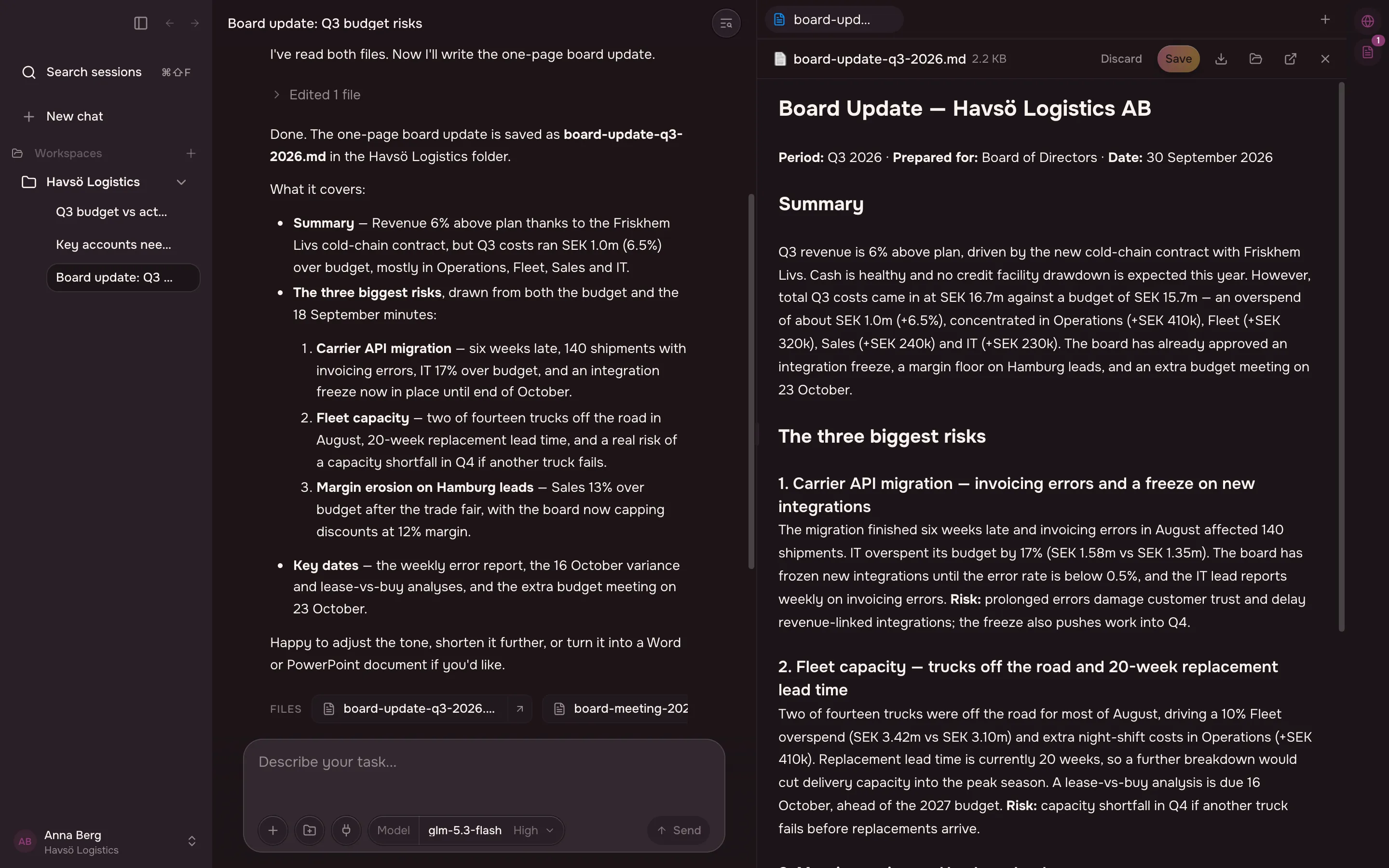
- In the chat, the agent shows a file it made as a card, where you can open it, preview it and download it.
- On the project’s page, Artifacts lists what the agent made in that project.
- On the Artifacts page, Artifacts in the left sidebar lists every page that has been published, from any computer. Yours shows only your own, and Shared with you what colleagues shared with you.
The files are also in the project’s main folder on your computer.
Know which kinds it makes
Section titled “Know which kinds it makes”The app labels each artifact by kind:
| Document | A text document, including Word files. |
| Presentation | Slides, including PowerPoint files. |
| Spreadsheet | A sheet you can open row by row and column by column. |
| A PDF. | |
| Page | A web page. |
| Markdown | Plain Markdown. |
| Text | Plain text. |
| Image | An image. |
| Video | A video file. |
| Audio | An audio file. |
| File | Anything that does not fit the kinds above. |
Preview a file before you open it
Section titled “Preview a file before you open it”You can preview Word and PowerPoint files inside the app. The preview is close to the real file, but not exact:
- text can be cut off where it runs past the edge of its box
- page-number fields show as ‹#›
- in PowerPoint, some drawings do not appear
- in Word, table styles do not apply their shading, and page breaks are approximate
Edit an artifact
Section titled “Edit an artifact”You can change an artifact in the app and choose Save changes. Or ask the agent to change it.
Publish a page
Section titled “Publish a page”Ask the agent to make a web page and publish it. Publishing puts the page on your organisation’s server and gives it a link. A new page is private: only you can open it until you share it.
If your organisation asks before anything is published, the app asks you to confirm first. If your organisation does not allow publishing, the app says so.
The app shows where a page stands:
| State | What it means |
|---|---|
| Not published | It has no link yet. |
| Published · version N | The link works, and shows version N. |
| Changed since version N | You have changed it since you published. Choose Publish again to update the link. |
| Withdrawn · version N | The link no longer works. |
Choose who can open it
Section titled “Choose who can open it”Choose Share on a published page. A panel opens with who can open the link, and every change you make there is saved at once.
- People with access lists you, as the owner, and the colleagues you have added. To add a colleague, search for their name in Add a colleague – search by name and choose them. To remove one, choose × beside their name.
- General access decides who else can open the link:
| General access | Who can open it |
|---|---|
| Only people with access | You and the colleagues listed. |
| Anyone at your organisation | Everyone in your organisation, including people who join later. |
| Anyone with the link | Anyone, without signing in. You only see this choice if your organisation allows it. |
Colleagues you share a page with see the same panel, without anything to change.
Nobody is told when you share a page. Send your colleagues the link yourself, with Copy link at the foot of the panel.
Withdraw a page
Section titled “Withdraw a page”Withdraw stops the link at once. The page’s files, and everything people saved in it, are deleted for good. This cannot be undone.
If publishing fails
Section titled “If publishing fails”Size limits apply: one page cannot be larger than a set size, and all of your organisation’s published pages together cannot exceed a larger one.
The app names the size and the limit when it refuses. Make the page smaller, for example by compressing its images, and publish again. If your organisation’s space is full, withdraw a page you no longer need.